
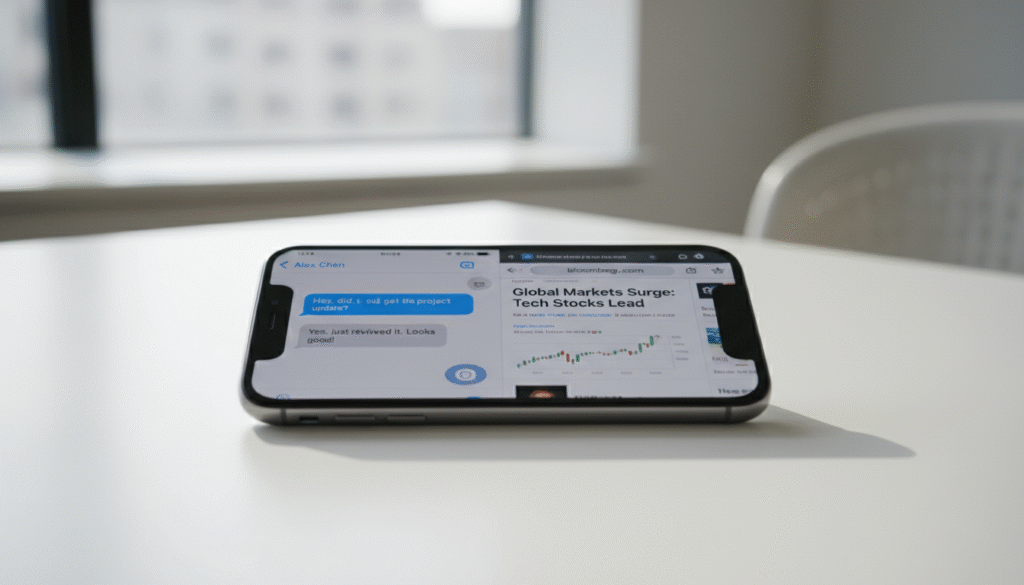
Managing multiple apps at the same time on your iPhone can transform how you work and play. Whether you want to watch a video while browsing the internet or take notes during a web call, split screen features make your device more powerful. Many iPhone users don’t realize their phone has built-in multitasking capabilities that can boost productivity.
The technology behind iPhone multitasking has evolved significantly. While true side-by-side split screen isn’t available on iPhone like it is on iPad or Mac, Apple offers several clever ways to use apps together. This guide walks you through every method available on your device.
Understanding iPhone Multitasking Features

The iPhone doesn’t support traditional split screen the way some people expect. Unlike iPad devices, you can’t place two full apps left right on the screen simultaneously. However, Apple provides three powerful multitasking features that serve similar purposes.
Picture in Picture (PIP) lets you watch video content in a floating window while using other apps. This feature works with supported video apps and FaceTime calls. The small window stays on top of your screen and can be moved around freely.

App switching is another core capability that makes multitasking smooth on your phone. The app switcher shows all your recently used apps, letting you jump between them quickly. This method is faster than returning to the home screen each time.
Slide Over provides a quick way to peek at another app without leaving your current one. Though this feature is primarily designed for iPad, understanding how iPhone handles similar functions helps you work more efficiently with your device.
What iPhone Can Do
- Picture in Picture for video content
- Fast app switching between programs
- Quick multitasking gestures
- Split View in Safari browser tabs
What iPhone Cannot Do
- True side by side app layout
- Adjustable split screen ratio
- Multiple windows of same app
- Desktop-style window management
How to Use Picture in Picture on iPhone

Picture in Picture is the closest thing to split screen functionality on your iPhone. This feature lets you play video in a small floating window while you work with other apps. The window hovers above everything else on your screen.
To use this feature, start playing a video in a supported app. Compatible apps include Apple TV, Safari browser, and many third-party video applications. Not all video apps support this feature, so check your specific app capabilities.

First, make sure Picture in Picture is enabled in your settings. Go to Settings, then scroll down to General. Look for the Picture in Picture option and ensure it’s turned on. This one-time setup allows the feature to work across all compatible apps.
Steps to Activate Picture in Picture
- Open a video app that supports PIP
- Start playing your desired video content
- Swipe up from the bottom of the screen to go to the home screen
- The video automatically shrinks into a floating window
- Open another app to use while the video plays

You can move the floating window around your screen by dragging it with your finger. Pinch the window to resize it or make it larger. Swipe the window to the left or right edge of your screen to hide it temporarily while keeping the video playing.
Tap the window to reveal playback controls. You can pause, play, skip forward, or close the video entirely. The controls disappear after a few seconds to keep your screen uncluttered.
Pro Tip: When using PIP during a phone call, the video continues playing with audio muted. This way you can reference information from a video while talking to someone.
Mastering Fast App Switching for Multitasking

The app switcher is your command center for multitasking on iPhone. This powerful feature lets you see all your open apps at once and switch between them instantly. Learning to use the app switcher efficiently saves time throughout your day.
To open the app switcher, the method depends on your iPhone model. On devices with Face ID (iPhone X and newer), swipe up from the bottom of the screen and pause in the middle. On iPhones with a home button, double-click the home button.

Your open apps appear as cards you can scroll through horizontally. Swipe left right to browse through them. Each card shows a preview of what that app currently displays. This visual method makes finding the app you want much faster.
Tap any app card to jump directly to it. To close apps you’re not using, swipe a card upward off the screen. This action forces the app to quit completely. Closing unused apps can help if your phone feels slow or if an app isn’t working properly.
Quick Switching Without the App Switcher

On newer iPhone models, you can switch between your two most recent apps even faster. Swipe left or right along the bottom edge of your screen. This gesture instantly takes you to the previous app without opening the full app switcher.
This quick method works perfectly when you frequently switch between two specific apps. For example, you might jump between a messaging app and a web browser repeatedly. The edge swipe makes this back-and-forth movement seamless.
Device-Specific Methods
Different iPhone models use slightly different gestures for multitasking. Face ID devices rely entirely on swipe gestures. Models with a home button combine button presses with swipes. Knowing your specific device method ensures smooth operation.

Using Split View in Safari Browser

Safari offers a special split screen feature that works only within the browser itself. This capability lets you view two web pages side by side on your iPhone screen. It’s particularly useful when comparing information or referencing one page while working on another.
To access this feature, you need to be in landscape orientation. Rotate your phone horizontally and open Safari. The split view option appears when you have multiple tabs open and want to see two of them simultaneously.

Open Safari and navigate to a website. Then tap the tabs button in the bottom right corner. This shows all your open tabs. Long-press on any tab, and a menu appears with various options. Select “Use Two Tabs” or “Split View” from this menu.
Working with Two Safari Tabs
Once split view is active, your iPhone screen divides into two sections. Each section displays a different web page. You can interact with either page independently by tapping and scrolling within that section of the screen.

Drag the divider line between the two pages left right to adjust how much screen space each page gets. This flexibility lets you prioritize one page while keeping another visible for reference. The adjustment happens smoothly as you drag.
To exit split view, tap the split view button again or rotate your phone back to portrait orientation. The feature automatically turns off when you switch to vertical mode. Safari remembers your tab arrangement for when you return to landscape mode.
Safari split view only works in landscape orientation on iPhone. This limitation differs from iPad, where split view works in both orientations. Keep your phone horizontal to maintain the split screen layout.
Which iPhone Models Support Multitasking Features

Not all multitasking features work on every iPhone model. Your device capabilities depend on both the hardware model and the iOS version installed. Understanding these requirements helps set proper expectations for what your specific phone can do.
Picture in Picture requires iPhone models running iOS 14 or later. This means iPhone 6s and newer devices support the feature. However, older models may experience performance issues when using PIP with demanding apps or high-resolution video content.

The app switcher works on all iPhone models, though the method to access it varies. Newer Face ID devices use gesture controls, while older models with a home button use button presses. The functionality remains consistent across all devices regardless of the access method.
Checking Your Device Capabilities
To verify your iPhone model and iOS version, open Settings and tap General. Then select About. This screen shows your device model and software version. Compare this information against Apple’s feature compatibility lists to confirm what your phone supports.
| Feature | Minimum Requirement | Performance |
| Picture in Picture | iOS 14 or later | Best on iPhone 11 and newer |
| App Switcher | All iPhone models | Consistent across devices |
| Safari Split View | iOS 15 or later | Best on iPhone 12 and newer |
| Quick App Switching | iPhone X or newer | Requires gesture navigation |

If your device doesn’t support certain features, updating to the latest iOS version may help. Go to Settings, then General, then Software Update. Install any available updates to ensure you have access to the newest multitasking capabilities Apple offers for your device model.
Is Your iPhone Not Performing as Expected?
If multitasking features aren’t working properly or your device seems slow, our certified technicians at iFix India can diagnose and resolve iPhone performance issues quickly.
Tips and Tricks for Efficient iPhone Multitasking

Maximizing your iPhone’s multitasking capabilities requires knowing some lesser-known tricks. These methods can significantly improve how efficiently you work with multiple apps throughout the day. Small adjustments to your workflow make a big difference in productivity.
Keep your most-used apps in the dock at the bottom of your home screen. Apps in the dock remain accessible from any screen, making them easier to reach when multitasking. This placement reduces the time spent searching for frequently used applications.
Optimizing Picture in Picture Usage

When using Picture in Picture, position the floating window strategically based on your current app. Place it where it won’t block important content. For reading apps, keep the window near the top or bottom. For web browsing, position it to the side where there’s less text.
You can temporarily hide the PIP window by swiping it to either edge of your screen. The video keeps playing with just a small tab visible. Tap the tab to bring the full window back. This method lets you clear your screen without stopping the video.
Mastering Gesture Controls

Practice the quick app switching gesture by swiping along the bottom of your screen. This movement becomes second nature with repetition. The gesture works best with deliberate, smooth motions rather than quick flicks.
Long-press the app switcher cards to access additional options. This action reveals a menu with choices like closing all apps at once or viewing app-specific information. These hidden options provide more control over your multitasking experience.
Video Watching
Use PIP to watch tutorials while following steps in another app. This method works perfectly for cooking videos, workout instructions, or tech guides where you need to see and do simultaneously.
Communication
Keep messaging apps easily accessible through quick switching. Reply to messages without losing your place in other work by using the app switcher or edge swipe gesture between apps.
Research Tasks
Use Safari split view to compare information across two web pages. This feature excels for price comparisons, research projects, or any task requiring side-by-side web content viewing.
Managing Battery and Performance

Multitasking can drain your battery faster than single-app use. Monitor which apps consume the most power by checking Settings, then Battery. Close resource-intensive apps when you’re not actively using them to preserve battery life and maintain smooth performance.
Video streaming through PIP uses more power than regular video playback. When battery is low, consider watching video in full-screen mode instead of floating window mode. This adjustment helps extend your usage time when charging isn’t immediately available.
Memory Management: Your iPhone automatically manages memory when multitasking. Apps in the background may pause to save resources. This behavior is normal and helps maintain system performance across all your open apps.
Troubleshooting Common iPhone Multitasking Issues

Even with proper setup, you might encounter issues with multitasking features on your iPhone. These problems usually have simple solutions that don’t require technical expertise. Understanding common issues helps you resolve them quickly and get back to productive work.
Picture in Picture sometimes fails to activate in certain apps. This happens because not all video apps support the feature. Check if your specific app has PIP compatibility by looking in the app’s settings or consulting the developer’s documentation.
Picture in Picture Not Working

If PIP doesn’t activate when you swipe up during video playback, verify the feature is enabled in Settings. Go to Settings, then General, then Picture in Picture, and ensure the toggle is green. Some apps also have their own PIP settings within the app itself.
Restart your iPhone if the feature still doesn’t work after checking settings. Press and hold the power button and either volume button until the power slider appears. Slide to power off, wait thirty seconds, then turn your phone back on.
App Switcher Problems

When the app switcher doesn’t open properly, the issue often involves gesture timing or technique. For Face ID iPhones, ensure you swipe up from the very bottom of the screen and pause midway before lifting your finger. The pause is crucial for the phone to recognize your intention.
On home button devices, verify the button itself works correctly. Double-clicking should feel responsive with distinct clicks. If the button feels mushy or unresponsive, it may need professional service to function properly.
Performance and Lag Issues

Multitasking features may become sluggish when your phone has limited available storage or too many apps running simultaneously. Check your storage by going to Settings, then General, then iPhone Storage. Delete unused apps or photos to free up space.
Clear your app cache periodically to maintain performance. Many apps accumulate temporary files that slow down the system over time. Offloading unused apps in Settings automatically clears cache while keeping your data safe for when you reinstall the app.
Why won’t my video stay in Picture in Picture mode?
Some apps require a premium subscription to use PIP features. Additionally, certain video content types don’t support PIP due to copyright restrictions or technical limitations set by the content provider.
Can I use three apps at once on my iPhone?
While you can’t have three full apps visible simultaneously, you can combine PIP with active app use. For example, watch a video in PIP mode while quickly switching between two other apps using the app switcher.
Does multitasking damage my iPhone battery?
Multitasking uses more power than single app use but doesn’t damage your battery. Modern iPhone batteries are designed to handle these workloads. Following good charging habits matters more for long-term battery health than multitasking usage.
When to Seek Professional Help: If your iPhone consistently crashes when multitasking, becomes extremely hot, or shows persistent performance issues despite troubleshooting, these symptoms may indicate hardware problems requiring expert diagnosis.
Still Experiencing iPhone Issues?
Our experienced technicians at iFix India specialize in diagnosing and fixing all iPhone problems. From software glitches to hardware repairs, we provide reliable solutions backed by quality service.
Alternative Ways to Work with Multiple Apps

Beyond the built-in multitasking features, creative methods exist for managing multiple tasks on your iPhone. These alternatives provide workarounds for situations where standard multitasking options don’t quite meet your needs. Exploring these methods expands your device capabilities.
Shortcuts app allows you to automate sequences of actions across multiple apps. You can create custom shortcuts that open specific apps in a particular order or perform repetitive tasks with one tap. This automation mimics some benefits of true split screen functionality.

Widgets on your home screen provide at-a-glance information from multiple apps without opening them fully. Stack widgets to save space while keeping data from various apps accessible. Swipe through widget stacks to view different app information quickly.
Using Notifications Effectively

Configure notifications to work like a lightweight task manager. Set up notification grouping by app to keep your notification center organized. Use notification actions to respond to messages or complete tasks without fully opening apps.
Critical alerts for important apps ensure you see urgent information immediately. This feature cuts through Do Not Disturb mode when necessary. Reserve critical alerts for apps that truly need immediate attention to avoid notification fatigue.
Third-Party Apps for Enhanced Multitasking

Some apps are specifically designed to enhance iPhone multitasking. Browser apps may offer features beyond Safari’s capabilities. Note-taking apps often include split views or floating windows within the app itself for better organization and reference.
Task management apps frequently include features that simulate multitasking by letting you view tasks alongside reference materials. These specialized tools sometimes provide better workflows than attempting to use multiple separate apps together.
Automation Tools
- Apple Shortcuts for workflow automation
- IFTTT for app integration
- Zapier for advanced task linking
- Focus modes for context switching

How iPhone Multitasking Compares to iPad and Mac

Understanding the differences between iPhone and other Apple devices helps set realistic expectations. Each device serves different purposes, and their multitasking capabilities reflect those distinct roles. iPhone prioritizes portability and single-focus work, while iPad and Mac offer more desktop-like experiences.
iPad supports true split screen with adjustable app windows side by side. You can run two full apps simultaneously at various size ratios. The larger screen real estate makes this practical for extended work sessions where you need constant access to multiple apps.

Mac computers provide the most flexible multitasking with unlimited windows and full desktop window management. You can resize, minimize, and arrange windows freely. This capability makes Mac ideal for complex workflows requiring many applications visible at once.
When to Use Each Device
Choose your iPhone for on-the-go tasks and quick interactions. The device excels at focused single-app work with occasional switching between programs. Its pocket-friendly size makes it perfect for mobile productivity despite limited multitasking compared to other devices.
| Device | Split Screen | Best Use Case |
| iPhone | Limited (PIP only) | Mobile tasks, quick reference |
| iPad | Full support | Extended work, content creation |
| Mac | Multiple windows | Complex workflows, professional work |

Apple’s Handoff feature bridges the gap between devices. Start work on your iPhone and seamlessly continue on iPad or Mac. This technology provides flexibility to choose the right device for each stage of your workflow based on multitasking needs.
Making the Most of Your iPhone Multitasking

While the iPhone doesn’t offer traditional split screen like some expect, it provides effective alternatives for multitasking. Picture in Picture, fast app switching, and Safari’s split view give you powerful tools to work with multiple apps efficiently. Understanding these features helps you maximize your device potential.
The key to iPhone multitasking success involves learning which method works best for each situation. Use PIP for video reference, the app switcher for jumping between programs, and Safari split view for web research. Combining these features creates a smooth workflow tailored to your specific needs.
Practice these techniques regularly to build muscle memory. What feels awkward initially becomes second nature with repetition. Your productivity increases as multitasking gestures become automatic parts of how you interact with your phone throughout the day.

Remember that device limitations exist for good reasons related to screen size and user experience design. Apple continues evolving iPhone capabilities with each iOS update, so stay informed about new features that might enhance your multitasking options as technology advances.
Need Expert iPhone Support?
Whether you’re facing technical issues, need device optimization, or require repairs, iFix India is your trusted partner for all iPhone services. Our certified technicians provide fast, reliable solutions with genuine parts and warranty coverage.





About The Author: Imran
More posts by imran